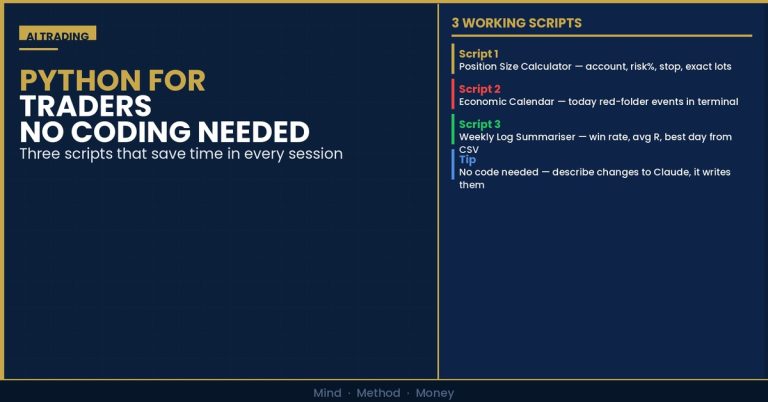


Pine Script is TradingView’s built-in coding language. It lets you build custom indicators, automated alerts, and strategy backtests directly on your charts — no external software, no complex setup, no paying a developer. If you trade on TradingView, learning the basics of Pine Script is one of the highest-leverage skills you can build in an afternoon.
This guide gets you to a working custom indicator in 30 minutes. No prior coding experience required.
What Pine Script Can Do for You
Before writing a single line of code, it’s worth being clear about what Pine Script is genuinely useful for and what it isn’t.
Pine Script is excellent for:
- Building custom indicators that TradingView doesn’t include natively (e.g. an OB highlighter, a Kill Zone shading tool, a session VWAP)
- Setting up precise, multi-condition alerts that trigger automatically when your setup criteria are met
- Backtesting mechanical rules — moving average crossovers, RSI levels, breakout conditions — quickly without leaving TradingView
- Visualising your own levels and zones directly on the chart
Pine Script is limited for:
- Backtesting complex discretionary ICT setups that require visual pattern recognition (use the AI workflow for this instead)
- Execution — Pine Script cannot place trades; it only generates signals and visualisations
- Multi-asset strategies that require real-time data from multiple exchanges simultaneously
For ICT traders specifically, the highest-value use of Pine Script is building Kill Zone highlighters, session range boxes, and multi-condition alerts that fire when price enters an Order Block zone during a Kill Zone window. You replace minutes of manual checking with an automatic ping to your phone.
Setting Up: The Pine Script Editor
Open any TradingView chart. At the bottom of the screen, click Pine Script Editor (or press Alt+P). A code editor panel opens. Click Open then New indicator to start with a blank script.
You’ll see this default template:
indicator(“My Script”, overlay=true)
plot(close)
Three lines. Let’s understand each one before we build anything.
Line 1: //@version=5 tells TradingView which version of Pine Script you’re using. Always use version 5 (the current standard).
Line 2: indicator("My Script", overlay=true) declares this as an indicator and tells TradingView to overlay it directly on the price chart (rather than in a separate panel below). Change overlay=false if you want a separate panel like RSI or MACD.
Line 3: plot(close) draws a line connecting each bar’s closing price. This is the simplest output Pine Script can produce.
Click Add to chart (top right of the editor). You’ll see a line appear on your chart following the close price. Congratulations — you’ve run your first Pine Script.
Building Your First Real Indicator: A Session Range Box
Let’s build something actually useful: a box that marks the Asian session range (midnight to 7am London time) on your chart. This is a foundational ICT concept — the Asian range defines the initial balance that London and New York sessions often break out of.
indicator(“Asian Session Range”, overlay=true, max_boxes_count=50)
// Define session time (UTC) — adjust for your broker’s timezone
asianSession = time(“60”, “0000-0700:1234567”)
// Track session high and low
var float sessionHigh = na
var float sessionLow = na
var int sessionStart = na
// Reset at session open
if not na(asianSession) and na(asianSession[1])
sessionHigh := high
sessionLow := low
sessionStart := bar_index
// Update high/low within session
if not na(asianSession)
sessionHigh := math.max(sessionHigh, high)
sessionLow := math.min(sessionLow, low)
// Draw the box when session closes
if na(asianSession) and not na(asianSession[1])
box.new(sessionStart, sessionHigh, bar_index, sessionLow,
border_color=color.new(color.yellow, 0),
bgcolor=color.new(color.yellow, 90))
Paste this into the editor and click Add to chart. You’ll see yellow shaded boxes marking the Asian session range on every day in your chart history. The box boundary lines show the session high and low — the levels that London and NY traders will reference.
To customise: Change "0000-0700" to different hours to mark London open ("0700-1000") or New York open ("1300-1600"). Change color.yellow to color.blue, color.orange, or any TradingView colour.
Adding an Alert: The Real Power of Pine Script
Indicators are useful. Alerts that fire automatically when your conditions are met are transformative. Here’s how to add an alert to any indicator you build.
Add this line at the end of any Pine Script:
alertcondition(
ta.crossover(close, sessionHigh),
title=“Asian High Breakout”,
message=“Price broke above Asian session high — potential NY continuation”
)
After adding the indicator to your chart, click the Alert button (clock icon, top toolbar), select your indicator from the dropdown, choose the alert condition, and set it to Once per bar close. TradingView will notify you via app, email, or webhook whenever the condition fires.
Key Pine Script Concepts in Plain English
You don’t need to memorise these — use them as a reference when building your own indicators.
Built-in price values: open, high, low, close, volume — these refer to the current bar’s values. Add [1] for the previous bar: close[1] is the prior candle’s close.
Variables: var float myLevel = na creates a variable that persists across bars. Without var, the variable resets every bar. Use var for anything you want to track over time (session highs, cumulative counts, etc.).
Conditions: if condition n action — Pine Script uses indentation (4 spaces) rather than brackets. The action runs only when the condition is true.
Plotting: plot(value, color=color.gold, linewidth=2) draws a line. plotshape(condition, style=shape.triangleup) draws a shape when the condition is true — useful for marking entry signals.
ta. functions: TradingView’s built-in technical analysis library. ta.ema(close, 20) calculates a 20-period EMA. ta.rsi(close, 14) calculates RSI. ta.crossover(fast, slow) returns true when the fast line crosses above the slow line.
A Simple Kill Zone Alert (Practical ICT Example)
This script plots a background colour during the London Kill Zone (07:00-10:00 UTC) and New York Kill Zone (13:00-16:00 UTC), and fires an alert if price is within 10 pips of a user-defined level during those windows:
indicator(“Kill Zone Highlighter”, overlay=true)
keyLevel = input.float(2320.0, “Key Level (e.g. OB midpoint)”)
proximity = input.float(10.0, “Alert proximity (pips)”)
londonKZ = not na(time(“60”, “0700-1000:1234567”))
newYorkKZ = not na(time(“60”, “1300-1600:1234567”))
inKillZone = londonKZ or newYorkKZ
bgcolor(londonKZ ? color.new(color.blue, 92) : na)
bgcolor(newYorkKZ ? color.new(color.orange, 92) : na)
nearLevel = math.abs(close – keyLevel) <= proximity
alertcondition(inKillZone and nearLevel,
title=“Kill Zone + Key Level”,
message=“Price near key level during Kill Zone — check for setup”)
Enter your OB midpoint or key level in the indicator settings, set the proximity in pips, activate the alert, and TradingView will notify you whenever price approaches that level during a Kill Zone window. This replaces constant chart monitoring with a targeted alert system.
Frequently Asked Questions
Do I need coding experience to learn Pine Script?
No. Pine Script is one of the most beginner-friendly programming languages available. The syntax is simple, TradingView’s documentation is thorough, and the community Pine Script library (accessible via the Indicators button on any chart) contains thousands of examples you can open and learn from. Most traders with no coding background can build functional indicators within a few hours of starting. The session range box and Kill Zone highlighter scripts in this article are complete, working scripts you can use immediately.
Can Pine Script place trades automatically?
No. Pine Script generates signals, visualisations, and alerts, but cannot connect to your broker to execute orders. For automated execution, you would need to combine TradingView alerts with a third-party webhook service (such as 3Commas or Autoview) that receives the alert and sends an order to your broker. This is significantly more complex than writing Pine Script itself and is generally not recommended for discretionary ICT traders whose setups require visual context that automated systems cannot provide.
What is the difference between an indicator and a strategy in Pine Script?
An indicator (indicator() declaration) plots values on your chart and can generate alerts. A strategy (strategy() declaration) simulates trades based on your entry/exit rules, tracks P&L, and produces a performance report in TradingView’s Strategy Tester tab. Use indicators for real-time monitoring and alerting. Use strategies for backtesting mechanical rules against historical data. Strategies cannot generate live alerts — that requires converting the entry conditions back into an indicator with alertcondition.
How do I access TradingView’s built-in Pine Script documentation?
In the Pine Script editor, click the question mark icon (top right) to open the built-in reference manual. It lists every function, variable, and type available in Pine Script v5 with examples. Alternatively, search “Pine Script v5 reference manual” online for the full documentation. TradingView also has an active community forum where most common questions have already been answered with working code examples.
Can I use Pine Script indicators on mobile?
Yes. Pine Script indicators added to a chart sync across your TradingView account and are visible on the TradingView mobile app. Alerts created from Pine Script also fire on mobile via push notification. This means you can set up your Kill Zone and key level alerts on desktop, then monitor them via mobile notifications while away from the screen — one of the most practical use cases for Pine Script in active trading.
▶ CONTINUE READING
Build your complete AI-powered trading toolkit:
▶ How to Backtest Your ICT Strategy Using AI Without Coding
▶ The Best AI Trading Tools in 2026: What Actually Works vs What’s Hype
The Complete Trader’s Edge
Chapter 67 covers building a modern trader’s toolkit including charting platforms, alert systems, journaling workflows, and how to integrate technology into your process without letting it replace your judgement.
 The Complete Trader's Edge
The full Mind · Method · Money framework. 70 chapters.
View on Amazon →
The Complete Trader's Edge
The full Mind · Method · Money framework. 70 chapters.
View on Amazon →
 Market Mayhem
400 years of bubbles, crashes, and the pattern that keeps repeating.
Buy on Amazon →
Market Mayhem
400 years of bubbles, crashes, and the pattern that keeps repeating.
Buy on Amazon →
 Greatest Companies
How the world's greatest companies were built — and what traders learn from them.
View on Amazon →
Greatest Companies
How the world's greatest companies were built — and what traders learn from them.
View on Amazon →