

Search “connect TradingView to Claude” and you’ll find dozens of guides promising a seamless AI-powered charting assistant. Most skip the part that actually matters: there is no official integration. Anthropic doesn’t build one. TradingView doesn’t build one. Everything you’ll find is a community-built bridge, and using it comes with real trade-offs you should understand before you touch a terminal.
This guide covers both the honest technical setup for traders who want it, and the far simpler (and safer) workaround that covers 90% of what most traders actually need.
The Straight Answer First: There Is No Official Integration
TradingView has no official Model Context Protocol (MCP) server, and no partnership with Anthropic exists. Every “TradingView MCP” you’ll find on GitHub is an independent, community-built project. That doesn’t automatically make them unsafe, but it does mean three things worth sitting with before you install anything:
- You’re trusting unaudited code. These are small open-source repos, not enterprise software with a security review process.
- They typically work by remote-controlling your TradingView Desktop app through the Chrome DevTools Protocol (CDP), the same debugging interface built into any Chromium-based application. It’s not a hack of TradingView’s servers, but it does mean opening a local debugging port on your machine.
- Programmatic control of TradingView, even entirely local, may sit in a grey area of TradingView’s Terms of Use. Read them before you rely on this for anything beyond personal experimentation.
Two Ways to Actually Combine Claude and TradingView
Most traders asking this question actually want one of two very different things. Figure out which one you are before you start installing software.
Method 1: The Simple Way (No Setup, No Risk)
If what you actually want is Claude’s analytical help on your trading, not live control of your charts, you don’t need any of this. Export your data, or screenshot your chart, and paste it straight into Claude.ai or Claude Desktop. This works today, requires no installation, carries none of the security or Terms of Use concerns below, and works on any TradingView plan including the free tier.
This is exactly the workflow behind three guides already on this site:
- Building a personal trading edge report from your exported trade log
- Backtesting an ICT strategy using CSV price data and a structured prompt
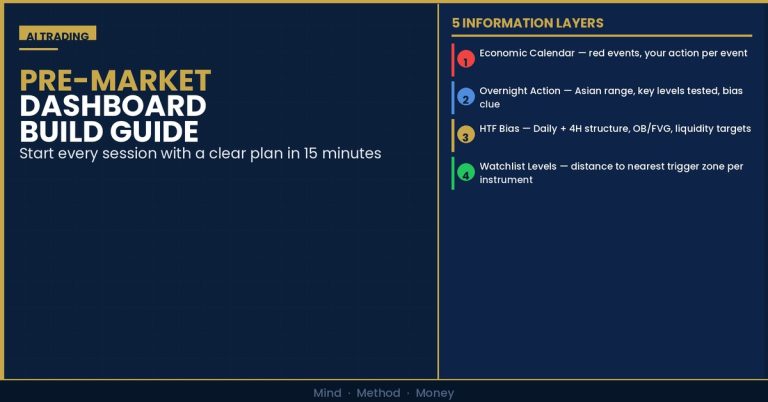
- Building a pre-market dashboard using free tools and AI
If you’re not already technical, start there. It covers the analytical use case — pattern review, journal analysis, setup scoring — without any of the setup risk below.
Method 2: The Technical Way (Community MCP Bridge)
If what you actually want is Claude reading your live charts and indicator values in real time, that requires Claude Code (the terminal-based product, not Claude.ai chat) connected to your TradingView Desktop app through a community-built MCP server. This is the setup the rest of this guide walks through.
Step-by-Step: Setting Up the TradingView MCP Bridge
Before you start, confirm your prerequisites. This will not work with the TradingView browser version, only the Desktop app. And most community servers need a paid TradingView plan (Pro or higher) for full functionality like bar-replay backtesting.
What you need:
- Claude Code installed on your machine
- TradingView Desktop app downloaded from your account page (not the browser)
- Node.js installed (most community servers are npm packages)
- Comfortable running terminal commands and approving them one at a time
Step 1 — Install the server. Clone a community TradingView MCP repository (search GitHub for “tradingview-mcp” and review the code and star count before choosing one), then run npm install inside the project folder.
Step 2 — Register it with Claude Code. From your terminal, not inside a Claude session, run:
Replace the path with wherever you cloned the repo. This writes the server config to your local Claude Code setup.
Step 3 — Launch TradingView with debugging enabled. Most of these bridges connect over a debug port, commonly 9222. You’ll launch the Desktop app with a remote-debugging flag (the specific command varies by server, so follow the README for the one you chose).
Step 4 — Restart Claude Code. Editing the config while a session is running doesn’t load it. Quit and relaunch.
Step 5 — Verify the connection. Ask Claude to run a health check tool (most servers expose one, commonly named something like tv_health_check). You’re looking for confirmation that the CDP connection and API are both active.
Step 6 — Test with a simple query. Something like “get the current price and RSI for EURUSD on the 1-hour chart.” If it comes back with live numbers pulled from your open chart, you’re connected.
What Claude Can Actually Do Once Connected
Once the bridge is working, Claude can read price, indicator values, and chart structure directly from your open TradingView session, and can help draft or edit Pine Script indicators and strategies in plain English. What it cannot do, on any setup, is place a live trade for you. Claude can design a strategy, backtest logic, and write the code. Pulling the trigger is still on you, and that’s a feature, not a limitation, given how much can go wrong when an AI assistant has execution access to a funded account.
The Risks Nobody Puts in the Headline
Every setup guide above the fold tells you how to install this. Fewer tell you what you’re accepting:
- Local system exposure. The server connects over a Chrome DevTools debug port. If that port or your machine is compromised, it’s a route into a session that has visibility into your TradingView data.
- Code injection risk. Community MCP servers process tool inputs from an AI model. Poorly sanitised inputs are a known vulnerability class in this kind of bridge.
- Data leakage. Tool outputs could surface more of your session than intended, especially if you’re running multiple charts or accounts side by side.
- Terms of Use conflict. Programmatic control of TradingView, even through a local desktop session, may not be sanctioned under TradingView’s own terms. Vet this yourself before relying on it for anything beyond personal, low-stakes use.
None of this means don’t do it. It means go in with permissions locked to read-only, use a reputable, actively-maintained repository, and treat it as an experimental personal tool rather than production infrastructure for a funded account.
Should You Bother?
If you mainly want AI-assisted market prep, edge analysis, or backtesting help, Method 1 gets you there today with zero setup and zero risk, and it’s what the guides linked above already walk through in detail. If you specifically want Claude reading your live charts in real time and helping you write Pine Script hands-on, and you’re comfortable with terminal setup and the security trade-offs above, Method 2 is a genuinely useful workflow. Just don’t confuse “works well” with “officially supported.” It’s neither endorsed nor built by Anthropic or TradingView, and you’re the one accepting the risk either way.
Start With TradingView Itself
Whichever method you choose, you need a TradingView account to work with. It’s the charting platform we recommend to most traders on our stack — free tier available, Pine Script included, and it’s what nearly every community MCP bridge is built around.
Disclosure: the TradingView link above is an affiliate link. If you sign up through it, The Complete Trader’s Edge may earn a commission at no extra cost to you.
Frequently Asked Questions
Is there an official TradingView integration for Claude?
No. As of mid-2026, TradingView has not released an official MCP server or any formal partnership with Anthropic. Every option connecting Claude to TradingView is an independent, community-built project. Vet the code and the maintainer before installing anything.
Does this work with Claude.ai (the chat app) or only Claude Code?
The live chart-control bridges described in this guide require Claude Code, the terminal-based product. Claude.ai chat and Claude Desktop can still help you analyse TradingView data, you just paste in exported CSVs or chart screenshots instead of connecting live. For most trading analysis use cases, that simpler approach is genuinely enough.
Can Claude place trades on TradingView for me?
No. Even with a full MCP bridge connected, these tools give Claude read access to charts and indicators and the ability to help write or edit Pine Script. Trade execution stays manual. Treat any claim otherwise as a red flag.
Do I need a paid TradingView plan?
The free tier works for basic price and indicator reads. Features like Pine Script bar-replay backtesting typically require TradingView Pro or higher. Check the specific community server’s requirements before assuming free tier will cover everything you want to do.
Is it safe to connect an AI assistant to my TradingView Desktop app?
It carries more risk than using Claude for analysis alone. You’re opening a local debug port and running third-party code that hasn’t been through a formal security audit. Start with read-only permissions, use an actively maintained and well-reviewed repository, and understand this is an experimental personal setup, not hardened production software.
▶ CONTINUE READING
More on using AI in your trading workflow:
▶ The Ultimate Guide to AI for Traders
The Complete Trader’s Edge
Our AI Trading chapters cover how to build a repeatable, low-risk workflow for using AI tools in market prep and analysis, without depending on unofficial software connected to your live trading platform.
 The Complete Trader's Edge
The full Mind · Method · Money framework. 70 chapters.
View on Amazon →
The Complete Trader's Edge
The full Mind · Method · Money framework. 70 chapters.
View on Amazon →
 Market Mayhem
400 years of bubbles, crashes, and the pattern that keeps repeating.
Buy on Amazon →
Market Mayhem
400 years of bubbles, crashes, and the pattern that keeps repeating.
Buy on Amazon →
 Greatest Companies
How the world's greatest companies were built — and what traders learn from them.
View on Amazon →
Greatest Companies
How the world's greatest companies were built — and what traders learn from them.
View on Amazon →